Merge PDF Files Online
Merge PDF files, images and Word documents into a single PDF. Choose the tool you need and get started quickly.
Merge PDF
Combine multiple PDF files into one PDF document quickly and easily.
Merge PDF 100KB
Merge PDF files and optimize the final document for a 100KB target size.
Merge PDF 300KB
Combine PDF files and create a compact PDF with a 300KB target.
Merge PDF 1MB
Merge multiple PDF files while keeping the final PDF around a 1MB target.
Merge Image to PDF
Combine JPG, JPEG and PNG images into one PDF document.
Merge Word File to PDF
Convert and combine Word documents into a single PDF file.
Fast & Easy PDF Tools
Select any tool above to merge and convert your files quickly. Works smoothly on desktop, tablet and mobile devices.
Merge PDF Online – Combine Multiple PDF Files Into One PDF | ToolBajar
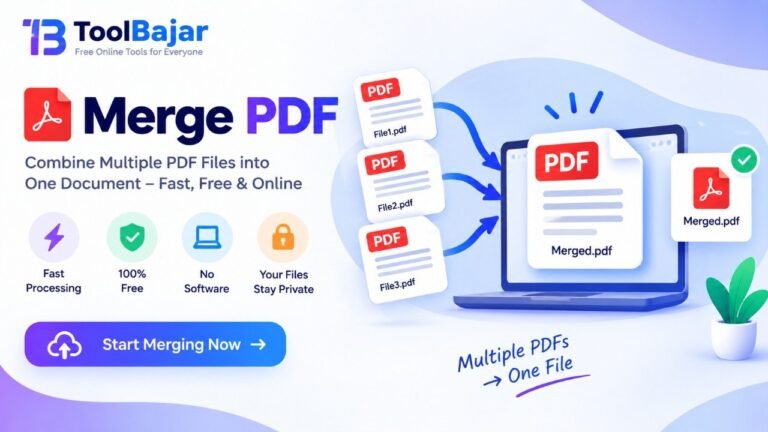
Managing multiple PDF files can become difficult when you need to submit, share, print, or store them together. Instead of sending several separate PDF files, you can merge PDF files into one document.
A PDF merger allows you to combine two or more PDF documents into a single PDF file while keeping the pages organized. This can be useful for applications, assignments, office documents, invoices, forms, reports, certificates, and other digital documents.
With a browser-based PDF merger, you can combine your files without installing complicated software. Select your PDF files, arrange them in the required order, and merge them into one PDF document.
Merge PDF Online Toolbajar
Merge PDF means combining multiple PDF files into a single PDF document.
For example, if you have:
- PDF File 1 – Application Form
- PDF File 2 – Identity Document
- PDF File 3 – Address Proof
- PDF File 4 – Certificate
Instead of uploading four separate files, you can merge them into one PDF and submit a single document.
A PDF merger is particularly useful when a website, application portal, school, college, company, or government service requires documents to be uploaded as one PDF file.
Merging PDF files is usually a simple process:
- Open the PDF merger tool.
- Select the PDF files you want to combine.
- Arrange the files in the required order.
- Check the selected documents.
- Click the Merge PDF button.
- Download the combined PDF file.
Before downloading, make sure the pages are arranged correctly and that all required documents are included.
Merge Multiple PDF Files Into One using ToolBajar
You can use a PDF merger when you have several separate documents that belong together.
For example, you may have:
- Resume PDF
- Cover letter PDF
- Educational certificate PDF
- Experience certificate PDF
Instead of maintaining several files, you can combine them into one PDF document.
This makes the final document easier to upload, share, print, and archive.
Merge PDF Files in the Correct Order
The order of PDF files can be important when creating a final document.
For example, if you are combining documents for an application, you may want the order to be:
- Application form
- Photograph
- Identity proof
- Educational certificate
- Supporting documents
Always arrange the files before merging so that the final PDF follows the required sequence.
Merge Word File to PDF
Sometimes you may have documents in Microsoft Word format and PDF format and want to create one final PDF.
A common workflow is:
Word document → Convert to PDF → Merge with other PDF files
For example, you could convert a resume created in Word into PDF and then merge it with your certificates and supporting documents.
If your files are already Word documents, first convert the Word files to PDF and then combine the resulting PDF files.
Merge DOCX to PDF
DOCX is the modern Microsoft Word document format. If you have one or more DOCX files, you can convert them to PDF and then merge the PDF files into one document.
This can be useful for:
- Reports
- Assignments
- Applications
- Business documents
- Project documents
- Resumes
Merge Image to PDF
You can also combine images into a PDF document.
For example, you may have photographs or scanned pages in JPG, JPEG, PNG, or other supported image formats. These images can be converted into PDF pages and combined into one PDF.
This is useful for scanned documents where every page has been saved as a separate image.
Merge JPG to PDF
If you have several JPG images, you can convert them into PDF pages and create a single PDF document.
For example:
Page 1.jpg + Page 2.jpg + Page 3.jpg → One PDF
This is commonly useful for scanned forms, handwritten notes, receipts, certificates, and photographs of documents.
Merge PNG to PDF
PNG images can also be converted into PDF pages and combined into a single PDF.
If you have screenshots, scanned documents, diagrams, or other PNG files, converting and combining them into a PDF can make sharing easier.
Merge Scanned Documents Into One PDF
When documents are scanned using a phone or scanner, each page may be saved separately.
For example:
- Scan 1
- Scan 2
- Scan 3
- Scan 4
- Scan 5
Instead of sharing five separate files, you can combine them into one PDF.
This creates a more organized document that can be easier to submit or archive.
Merge PDF Under 100KB
Some online application forms and portals may have strict file-size limits.
If you need a PDF under 100KB, merging files alone does not guarantee that the final document will be below 100KB.
The typical process is:
Merge PDF → Compress PDF → Check file size
If the resulting PDF is larger than 100KB, you may need to compress or optimize it.
The final size depends on factors such as:
- Number of pages
- Image resolution
- Image quality
- Fonts
- Embedded content
- Original PDF structure
A text-only PDF can often be much smaller than a PDF containing high-resolution scanned images.
Merge PDF Under 300KB
A 300KB PDF limit is another common type of file-size requirement.
If your merged PDF exceeds 300KB, you can compress the document after merging.
For example:
Multiple PDFs → Merge → Compress → Final PDF under the required size
However, the exact compression level required depends on the original documents.
If the PDF contains scanned images, reducing image resolution can significantly reduce the file size.
Merge PDF Under 500KB
If an application requires a PDF smaller than 500KB, first combine your documents and then check the resulting file size.
If the file is too large, use PDF compression to reduce its size.
It is important to check the final PDF after compression to make sure the text remains readable.
Merge PDF Under 1MB
A 1MB PDF limit is relatively common for online forms and document-upload systems.
If your combined PDF is larger than 1MB, you can reduce its size using PDF compression.
A useful workflow is:
- Select the required PDFs.
- Merge them into one PDF.
- Check the file size.
- Compress the PDF if necessary.
- Check the final file again.
- Upload the compressed PDF.
Merge PDF Under 2MB
Some websites allow documents up to 2MB. If you have multiple PDF files, merging them can increase the total file size.
For example:
PDF 1 – 600KB
PDF 2 – 500KB
PDF 3 – 700KB
The resulting file may be larger than 2MB depending on how the PDFs are structured.
If necessary, compress the merged PDF to meet the upload requirement.
Merge PDF Without Losing Quality
When combining PDF files, merging itself generally does not require reducing the quality of the original pages.
However, if you compress the PDF after merging, image quality may be reduced depending on the compression settings.
For documents containing important text or certificates, check the final PDF carefully after compression.
Merge PDF on Mobile
You can also merge PDF documents from a smartphone when using a browser-based PDF tool that supports mobile devices.
A typical mobile workflow is:
- Open the PDF merger in your mobile browser.
- Select PDF files from your device.
- Arrange them in the correct order.
- Merge the files.
- Download the resulting PDF.
This can be useful when documents have been downloaded or scanned directly on a smartphone.
Merge PDF on Windows
On Windows, you can select PDF files from your computer and combine them using a PDF merging tool.
This is useful for office documents, downloaded certificates, reports, invoices, and other files stored on your PC.
You do not necessarily need to manually copy and paste PDF pages into another document.
Merge PDF for Job Applications
Job applicants may need to submit several documents together.
For example:
- Resume
- Cover letter
- Educational certificates
- Experience certificates
- Identity documents
Depending on the application requirements, these documents can be combined into one PDF.
Always follow the specific file format, size, and document-order requirements given by the employer or application portal.
Merge PDF for College Assignments
Students often have assignments, cover pages, handwritten pages, diagrams, and supporting documents stored separately.
These can be converted or combined into a single PDF before submission.
For example:
Cover Page + Assignment + Images + References → One PDF
This makes the final assignment easier to submit and manage.
Merge PDF for Government Forms
Government and public-service portals may sometimes require multiple pages or supporting documents in a single PDF.
Before uploading, check the portal’s requirements for:
- Maximum file size
- Accepted file format
- Number of pages
- Required document order
- Scan quality
If a single PDF is required, a PDF merger can combine the necessary documents.
Is It Safe to Merge PDF Online?
The answer depends on how the particular tool processes uploaded files.
For sensitive documents such as identity cards, financial documents, certificates, or personal records, check the tool’s privacy policy and file-processing method before uploading.
Browser-based tools that process files locally can offer an additional privacy advantage because the files do not need to be sent to a remote server.
However, users should verify the specific tool’s actual processing behavior rather than assuming every online PDF tool works this way.
Merge PDF Without Installing Software
A browser-based PDF merger can be convenient if you only need to combine documents occasionally.
Instead of installing a desktop application, you can open the tool in a web browser, select your files, merge them, and download the resulting document.
This can be particularly convenient when working from different computers or devices.
Frequently Asked Questions About Merge PDF
What is a PDF merger?
A PDF merger is a tool that combines multiple PDF files or pages into one PDF document.
Can I merge two PDF files?
Yes. Two PDF files can be combined into a single PDF document using a PDF merger.
Can I merge more than two PDFs?
Yes. A PDF merger can combine multiple PDF files into one document, depending on the tool’s file and page limits.
Can I merge Word files into PDF?
Word files normally need to be converted to PDF first. The resulting PDF files can then be merged into one document.
Can I merge images into a PDF?
Yes. Images such as JPG, JPEG, and PNG can be converted into PDF pages and combined into one PDF.
Can I make a merged PDF smaller than 100KB?
It may be possible, depending on the content. After merging, you may need to compress the PDF to reach a 100KB limit.
How can I merge PDF under 1MB?
Merge the required documents first and then compress the resulting PDF if it exceeds 1MB. The achievable size depends on the PDF’s content.
Does merging PDF reduce quality?
Merging PDF files by itself does not necessarily reduce the quality of the pages. Quality changes are more commonly associated with compression or image conversion.
Can I merge PDF files on my phone?
Yes, if
Conclusion
A Merge PDF tool provides a simple way to combine multiple documents into one organized PDF. It can be useful for applications, assignments, job documents, certificates, reports, scanned documents, and everyday file management.
You can merge multiple PDF files, convert images into PDF pages, convert Word documents to PDF before combining them, and prepare documents for portals with specific file-size requirements.
If the final PDF needs to meet a size limit such as 100KB, 300KB, 500KB, 1MB, or 2MB, remember that merging and compression are two different processes. First create the required document, then compress it if necessary to meet the specified size limit.